Learn
Getting Started: Create Your First Polished Markdown PDF
A practical first-export walkthrough: choose the document you are making, select a task-specific template, inspect the preview, and verify the downloaded PDF.
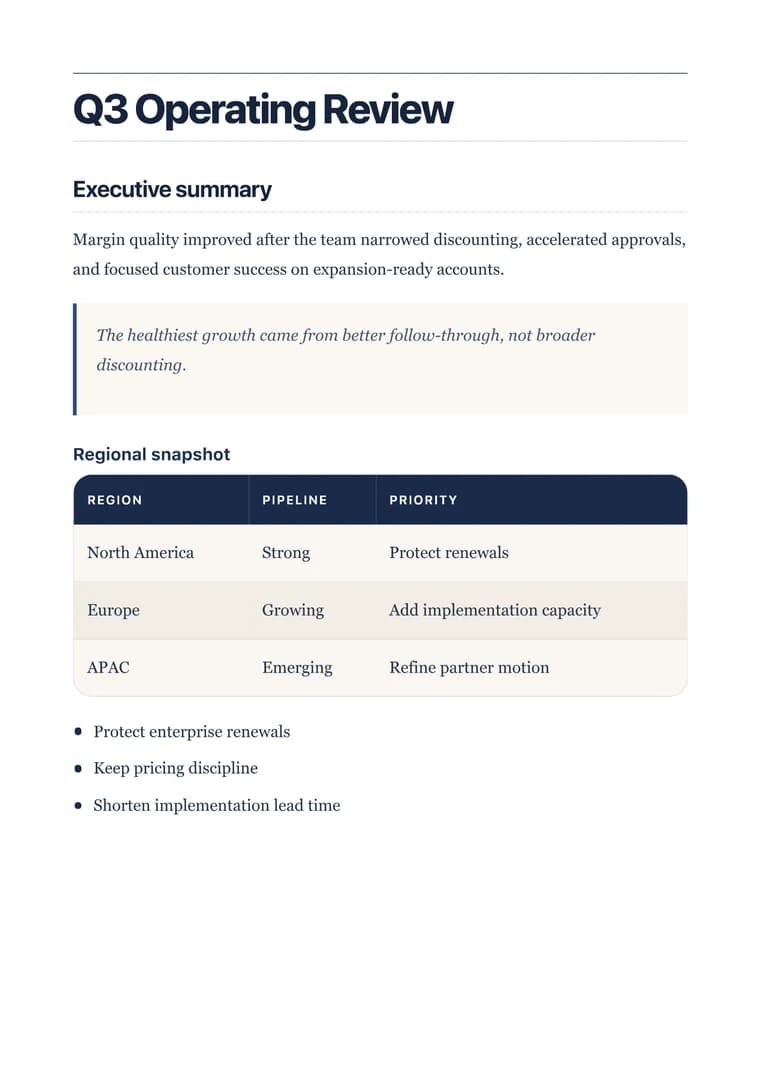
What you will produce
Try the related templateOn this page
The fastest route to a good PDF is to begin with the kind of document you are making, not with a generic print style. A contract needs clause structure and signature space. A resume needs compact career typography. A report needs a strong decision hierarchy. The converter keeps the Markdown workflow simple while the selected template handles that document-specific design work.
This guide takes you through one complete export and shows where to spend your attention.
Choose the result before editing the content
Open the converter and select the template closest to the final job:
| You are making | Start with | Why |
|---|---|---|
| Board brief, proposal, or client report | Executive | Strong report hierarchy, restrained color, and optional page numbers |
| Resume or CV | Resume | Compact spacing and career-focused type hierarchy |
| Cover letter | Cover Letter | A matching one-page letter layout |
| Contract, NDA, or agreement | Legal | Formal sections, clause rhythm, and signature blocks |
| Research paper or coursework | Academic | Long-form serif reading and formal headings |
| Visual brief or diagram-heavy document | Creative | Bold headings and configurable accent colors |
| Notes, drafts, and general exports | Clean | Neutral typography with no premium styling |
Selecting a premium template does not immediately ask for payment. A signed-up free account can complete five premium PDF exports before upgrading. That allowance is shared across browser, REST API, and MCP exports, so the trial reflects the real platform rather than a separate demo.
Prepare Markdown that gives the template a clear hierarchy
Use one level-one heading for the document title, level-two headings for major sections, and level-three headings only when a section genuinely needs subdivision.
# Q3 Launch Brief

## Executive summary

The launch window is ready, pending final legal review.

## Decisions needed

- Approve the partner launch date
- Confirm the customer proof section
- Assign the final legal reviewer

## Owners

| Workstream | Owner | Status |
| --- | --- | --- |
| Launch plan | Product | Ready |
| Legal review | Legal | Pending |
The converter supports headings, emphasis, links, blockquotes, ordered and unordered lists, tables, fenced code blocks, images, task lists, math, and Mermaid diagrams. For the syntax and layout limits of each element, use the Markdown formatting guide.
Use the browser preview for fast editing
The preview is designed for quick iteration. Use it to confirm:
- The selected template feels right for the document.
- Headings create a clear visual hierarchy.
- Tables have sensible column widths.
- Images load and have useful alternative text.
- Code and Mermaid blocks fit the available width.
- The document is neither uncomfortably dense nor padded with empty sections.
The browser preview is a practical editing surface. The downloaded PDF is the final authority for pagination, font embedding, print geometry, and external asset loading. For a client-facing or production document, always inspect the exported file before sending it.
Adjust only the controls that improve the document
More styling is not automatically better. Use the available controls with a clear purpose:
- Page numbers help reports, research papers, policies, and agreements. They are usually unnecessary on a one-page resume or cover letter.
- Body and heading colors should keep strong contrast. Reserve brand color for headings or accents rather than making long paragraphs colorful.
- Creative accent changes the highlight color on Creative and Legal layouts. Pick one that matches the document’s tone.
- Custom templates are for repeatable brand systems: uploaded fonts, logos, backgrounds, page geometry, and reusable layout blocks.
If the built-in template is already close, keep it. Move to the custom template studio when the same brand treatment will be reused across many documents.
Export the correct PDF
The converter presents two clear paths:
- Basic PDF uses the Clean template and can be exported without an account, subject to the anonymous daily limit.
- Premium PDF uses the selected premium or saved custom template. A free signed-up account receives five premium exports before the upgrade prompt appears.
Choose a descriptive filename before downloading. q3-launch-brief.pdf is easier to find and safer to send than document.pdf.
Run a final PDF proof
Open the downloaded file and inspect the pages at normal zoom and at fit-to-page. Check the following before publishing:
- No heading is stranded at the bottom of a page.
- Tables and code blocks remain within the page.
- Links point to the intended destination.
- Images are sharp enough for the target page size.
- Repeated headers, footers, and page numbers are consistent.
- The final page does not contain an accidental large blank area.
- The filename and document title match the version you intend to send.
For high-stakes documents, print one representative page or open the PDF in a second viewer. The PDF design quality checklist covers a more rigorous preflight.
Continue with the workflow that matches your job
- Compare every built-in option in the template comparison guide.
- Build a reusable company design in the custom template guide.
- Reproduce a finished newsletter, certificate, or invitation.
- Automate repeat exports with the REST API and MCP documentation.