Learn
How to Convert Claude Output to PDF
Export Claude's Markdown responses and artifacts into clean, shareable PDFs with formatting, tables, and code blocks intact.
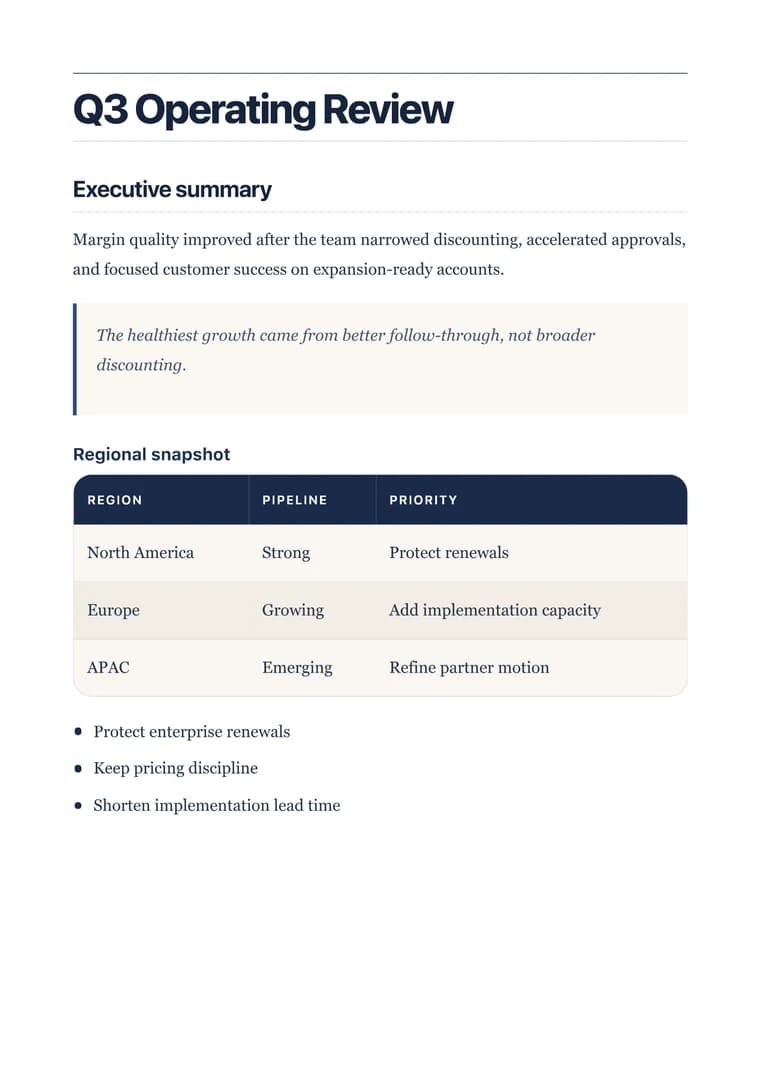
What you will produce
Try the related templateOn this page
Claude writes in Markdown, so converting its output to PDF is direct: copy the response (or the contents of an artifact), paste it into the converter, choose a template, and export. Long, structured documents — which Claude is particularly good at — keep their headings, tables, and code formatting through the conversion.
Responses vs. artifacts
Claude produces Markdown in two places, and both convert cleanly:
- Chat responses — use the copy control on a message to grab the Markdown.
- Artifacts — when Claude builds a longer document or a code file in the side panel, copy its Markdown contents directly. Artifacts are often the better source because they hold complete, well-structured documents.
Convert it
Paste the Markdown into the converter, check the preview, and export. The Executive template suits the reports, briefs, and proposals Claude tends to produce; Clean is better for internal notes; Resume is ideal if Claude drafted a CV.
Get export-ready output
A few habits make the PDF look intentional:
- Ask Claude to “return the full document as Markdown” so you copy one complete source rather than stitching pieces together.
- Keep code blocks tagged with their language for correct highlighting.
- If the document is long, let the converter paginate it — the page margins stay consistent across every page.
- Remove any preamble so the PDF starts with the title or first heading.
When this matters
Claude is frequently used for first drafts of documents that ultimately need to be sent or filed — specs, memos, research summaries, contracts. Converting the Markdown to PDF turns that draft into a finished, portable file without re-typing it into another tool, and you can regenerate the PDF whenever the underlying text changes.